

Cappuccino
Marblecake
Fashionable Cakes · 120,671 / 25,000 (482.7%) Event ended ·  Last updated: just now  ·  Cookfest — learn more →
The 120,000 milestone was reached. Can we push to 125,000 servings for even more rewards?

How to Play


To play Project Cappuccino, follow the steps below!

Note: This game was made to be played in a computer. It is possible to play on a mobile device (iOS, Android) if you visit the game page, but it's not recommended! This tutorial assumes your operating system is Windows. If it isn't, you can try installing Flash on Linux by installing the .so plugin for Pale Moon, please look it up if you don't know how. For macOS, I don't really have any methods that I know of right now, I apologize.

Playing without installing Flash using Ruffle

Playing with Ruffle is currently NOT recommended due to it having frequent connection issues and major performance hiccups. By using it, you're assuming you're going to run into lags, possible crashes and disconnections.
Please do not report these problems in our Discord server, as we cannot fix them.

Access the game page as usual on any up-to-date browser on any operating system (Windows, Linux, MacOS, Android, iOS) and you'll be able to play using Ruffle, no downloads required.
It is also possible to play on a mobile device using this method.

Using native Flash

It is not possible to play on mobile devices using this method. However, you're going to have the best experience playing on native flash, with no disconnections and performance drops.

1. Download Chromium

Please do not use this version of Chromium as your default browser, nor to actually use any other websites. Just use it to play Cappuccino and nothing else, it is a version that was released in 2017 and has lots of security vulnerabilities in modern websites by now.
We're using it because any versions released after December 31st, 2020 have Flash completely disabled.

This is an older version of Chromium, specifically Chromium 59. Choose "chrome-win32.zip" to run this in portable mode or the "mini installer" to install normally as any other program.

Get Chromium from Google's CDN

2. Install Clean Flash

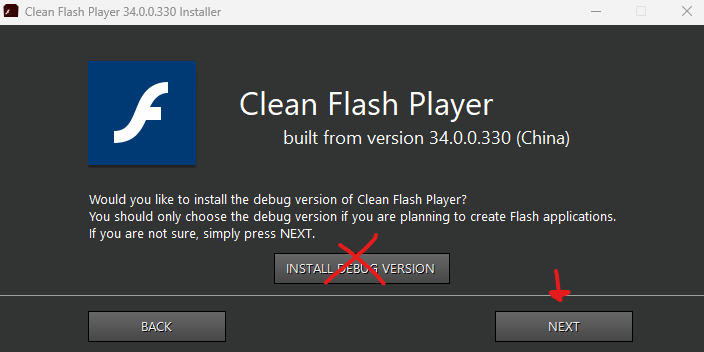
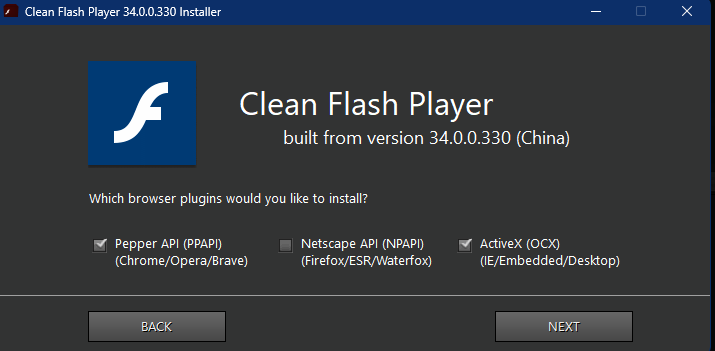
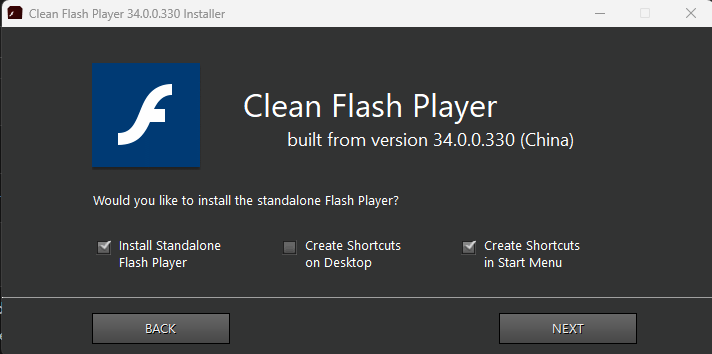
Download and run the installer. Follow the visual guide below for the correct settings.
Only choose debug mode if you love seeing ActionScript errors in the middle of your gameplay, I wouldn't recommend it.
Install Clean Flash

3. Enable Flash

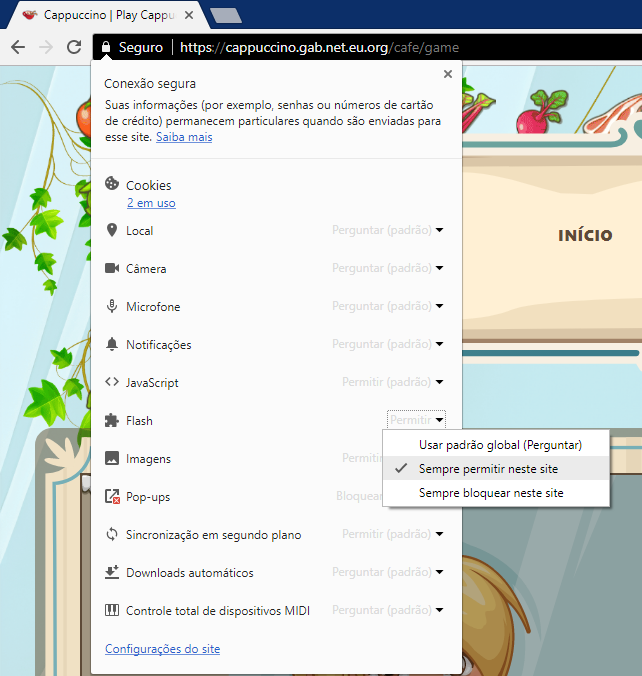
Open the game page in Chromium and click the "Allow" button in the address bar.
🎉 4. Ready to Play!

You are all set! Remember to always use this specific browser to access the Café.